How to Create a Q&A Website with WordPress (No Coding Required)
Build a question and answer website with WordPress using the free DW Q&A plugin. No coding needed. Complete step-by-step tutorial with settings and tips.
ASALogsAgency Team
Author
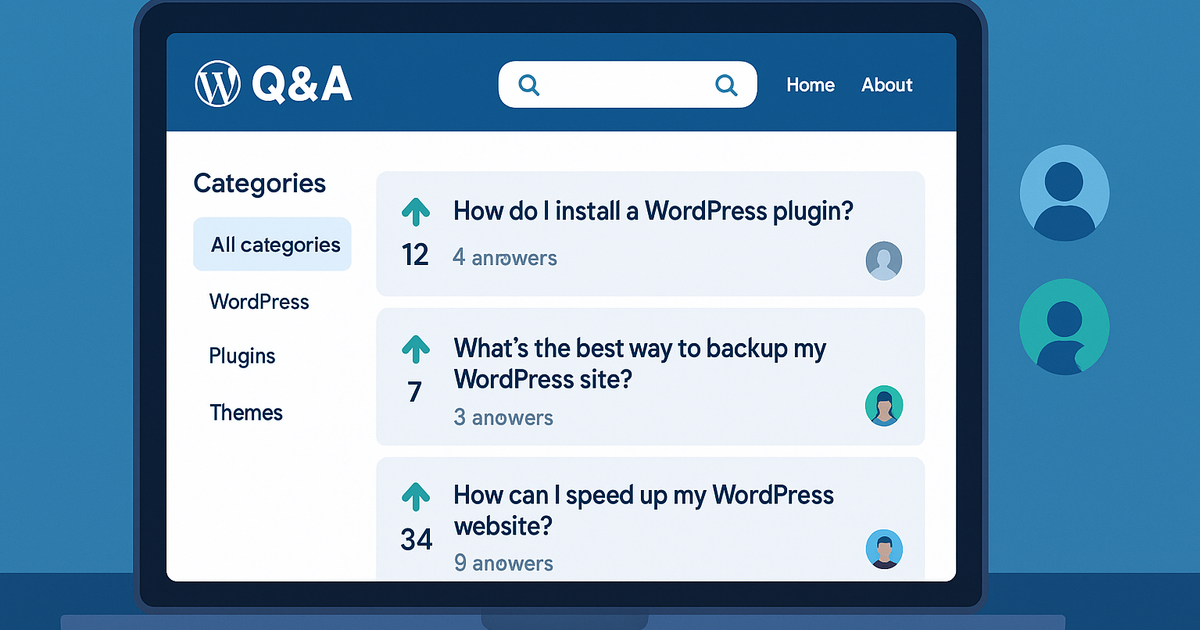
Question and answer websites are powerful platforms for building engaged communities and sharing valuable information. Sites like Stack Overflow, Quora, and Reddit demonstrate how Q&A communities drive massive user engagement and create searchable knowledge repositories.
The good news? You can build your own Q&A website using WordPress without any programming experience. Whether you want to create an entire Q&A community, add a FAQ section, or integrate a Q&A module into your existing WordPress site, this comprehensive guide will walk you through every step.
Why Build a Q&A Website?
Q&A websites offer unique advantages:
✓ High user engagement – Users return regularly to ask and answer questions
✓ SEO benefits – User-generated content creates thousands of searchable pages
✓ Community building – Foster discussions around your niche
✓ Establish authority – Position yourself as an industry expert
✓ Reduce support costs – Users help each other solve problems
✓ Monetization potential – Generate revenue through ads or memberships
What You'll Need to Get Started
Before building your Q&A site, prepare the following:
1. Domain Name
Choose a memorable domain that reflects your community's focus (e.g., TechAnswers.com, FitnessQA.com)
2. Web Hosting
Select reliable WordPress hosting:
- •Budget options: Bluehost, SiteGround, Hostinger
- •Performance: WP Engine, Kinsta, Cloudways
- •Requirements: PHP 7.4+, MySQL 5.6+, 1GB RAM minimum
3. WordPress Installation
Most hosting providers offer one-click WordPress installation. After purchasing your domain and hosting, install WordPress before proceeding to the next steps.
Step 1: Install the DW Question & Answer Plugin
The DW Question & Answer plugin is a free, powerful solution for creating Q&A functionality in WordPress.
Installation Process:
- Log in to your WordPress dashboard
- Navigate to Plugins > Add New
- Search for "DW Question & Answer"
- Click Install Now, then Activate
Upon activation, the plugin automatically creates two essential pages:
- •Question and Answer Center – Displays all submitted questions
- •Ask a Question – Contains the form for users to submit new questions
Step 2: Customize Page Titles and URLs
The plugin creates default page titles that you should customize for better SEO and user experience.
Edit Your Q&A Pages:
- Go to Pages > All Pages
- Locate the two pages created by the plugin
- Click Quick Edit on each page
- Customize the Title and Slug (URL-friendly name)
- Click Update to save changes
Recommended Page Names:
Questions Page:
- •Title: "Community Questions" or "Browse Questions"
- •Slug:
questionsorcommunity
Ask Page:
- •Title: "Ask a Question" or "Submit Question"
- •Slug:
ask-questionorsubmit
Pro Tip: Use clear, descriptive URLs that help both users and search engines understand your page content.
Step 3: Enable User Registration
For users to post questions and answers, they need accounts on your website.
Configure Registration Settings:
- Navigate to Settings > General
- Scroll to the Membership section
- Check the box "Anyone can register"
- Set "New User Default Role" to "Subscriber"
- Click Save Changes
Why Subscriber Role?
Subscribers can participate in discussions but cannot access admin features or publish posts, keeping your site secure while encouraging community participation.
Step 4: Configure Plugin Settings
Now let's optimize your Q&A plugin for the best user experience.
Access Plugin Settings:
Click Questions > Settings in your WordPress dashboard
A. General Tab Settings
Select Display Pages:
The plugin should have automatically selected your Q&A pages. Verify:
- •Question form page – Where users submit questions
- •Questions display page – Where all questions appear
Using Shortcodes for Custom Placement:
Want Q&A functionality on different pages? Copy and paste these shortcodes:
[dwqa-list-questions]  // Display questions list
[dwqa-submit-question] // Display question formQuestion Display Options:
- •Questions per page: Set between 10-20 for optimal performance
- •Manual review: Enable this to moderate questions before publishing (recommended when starting)
- •Sort order: Choose newest first, most popular, or recent activity
B. Spam Protection Settings
Protect your Q&A site from spam with these features:
Akismet Anti-Spam:
- Enable "Use Akismet spam filtering"
- Enter your Akismet API key
- Get a free key at Akismet.com
Google reCAPTCHA:
- Enable "Use reCAPTCHA"
- Register at Google reCAPTCHA
- Enter your Site Key and Secret Key
- Choose version (v3 recommended for seamless UX)
Important: Click Save Changes after configuring spam protection.
C. Email Notifications Tab
Customize email notifications for users and administrators.
Configuration Options:
- •Upload logo – Add your brand logo to emails
- •Notification templates – Customize message content
- •Email recipients – Set who receives alerts
- •Trigger events – Choose which actions send emails
Recommended Notifications:
- •✅ New question submitted (admin alert)
- •✅ Question answered (user notification)
- •✅ Answer marked as best (user notification)
D. Permissions Tab
Control what different user roles can do on your Q&A site.
Default Permission Settings:
Administrators and Editors:
- •✅ Read all content
- •✅ Post questions and answers
- •✅ Edit any content
- •✅ Delete any content
Subscribers:
- •✅ Read all content
- •✅ Post questions and answers
- •✅ Edit own content
- •❌ Delete content
Anonymous Users (Guests):
- •✅ Read content
- •Optional: Post questions without registration
- •❌ Edit or delete anything
Anonymous Posting Consideration:
By default, the plugin allows guests to post questions. You can modify this in permissions:
- •Keep enabled: Lower barrier, more questions
- •Disable: Reduce spam, build registered community
Step 5: Manage Your Q&A Site
As administrator, you have full control over all questions and answers.
Question Management Dashboard:
Navigate to Questions > All Questions to:
- •View all submitted questions
- •Edit any question or answer
- •Delete inappropriate content
- •Mark questions as resolved
- •Moderate pending questions (if manual review enabled)
Create Question Categories
Organize questions by topic for easier navigation:
- Go to Questions > Categories
- Create categories relevant to your niche
Example Categories:
- •Tech site: Programming, Hardware, Software, Networking
- •Fitness site: Nutrition, Workouts, Supplements, Recovery
- •Business site: Marketing, Finance, Operations, HR
Note: Only administrators can create categories. Users can add tags when submitting questions, but cannot create new categories.
Categories vs. Tags:
Categories are broad topics set by admins, while tags are specific keywords added by users for better searchability.
Step 6: Frontend User Experience
Let's explore what your visitors will see and how they interact with your Q&A site.
Questions List Page
The main questions page displays:
- •Question titles – Clickable links to full questions
- •Preview text – Brief snippet of question content
- •Metadata: Author, date, answer count, views
- •Categories and tags – For filtering
- •Search bar – Find specific questions
- •Sort options – Newest, popular, unanswered
User Capabilities:
- •Browse questions by category
- •Search for specific topics
- •Vote on questions (upvote/downvote)
- •Follow questions for updates
- •Filter by status (open, resolved)
Single Question Page
When users click a question, they see the full question page with rich interaction options.
Question Section:
- •Complete question with detailed description
- •Author information
- •Vote buttons (upvote/downvote)
- •Follow button for notifications
- •Tags and categories
Answers Section:
- •All submitted answers
- •Vote buttons for each answer
- •Comments on answers
- •"Best Answer" highlight
- •Report inappropriate content option
User Interactions:
Users can engage in multiple ways:
- •✅ Post answers – Share knowledge and solutions
- •✅ Add comments – Clarify questions or answers
- •✅ Vote – Upvote helpful content, downvote unhelpful
- •✅ Follow questions – Get email updates on new answers
- •✅ Mark resolved – Question authors can mark their question as answered
- •✅ Select best answer – Question authors choose the most helpful answer
This multi-level interaction creates deeper engagement and encourages quality discussions around each question.
Step 7: Theme Compatibility and Styling
The DW Question & Answer plugin is compatible with most WordPress themes, giving you flexibility in design.
Theme Selection Tips
Good Theme Characteristics:
- •Clean, readable design
- •Responsive mobile layout
- •Fast loading speed
- •Good contrast and typography
- •Plugin-friendly code
Recommended Themes:
- •Astra – Lightweight and highly customizable
- •GeneratePress – Speed-focused with flexibility
- •OceanWP – Feature-rich free option
- •Kadence – Modern design with templates
Custom Styling with CSS
If you know CSS, you can customize your Q&A pages to match your brand perfectly.
How to Add Custom CSS:
- Go to Appearance > Customize
- Select Additional CSS
- Add your custom styles
Example CSS Customizations:
/* Style question cards */
.dwqa-question {
    border: 2px solid #e0e0e0;
    border-radius: 8px;
    padding: 20px;
    margin-bottom: 15px;
}

/* Customize vote buttons */
.dwqa-vote-button {
    background: #0073aa;
    color: white;
    border-radius: 4px;
}

/* Highlight best answer */
.dwqa-best-answer {
    background: #f0f8ff;
    border-left: 4px solid #4CAF50;
    padding: 15px;
}

/* Style answer count badge */
.dwqa-answers-count {
    background: #FF6B35;
    color: white;
    font-weight: bold;
}No CSS skills? Consider hiring a designer or using page builders like Elementor to customize your pages visually.
Step 8: Localization (Non-English Sites)
If your website uses a language other than English, you'll need to translate the plugin interface.
Translation Methods:
Option 1: Loco Translate Plugin (Recommended)
- Install the Loco Translate plugin
- Go to Loco Translate > Plugins
- Select DW Question & Answer
- Click New Language and choose yours
- Translate all interface strings
- Save and the translation activates automatically
Option 2: WPML (For Multilingual Sites)
Use WPML for professional multi-language Q&A communities where users can ask questions in different languages.
Option 3: Manual Translation Files
Advanced users can download and edit .po/.mo files using tools like Poedit.
Advanced Tips for Q&A Success
1. Seed Your Community
Don't launch with an empty Q&A site:
- •Post 10-20 quality questions yourself before launch
- •Answer your own questions to demonstrate format
- •Invite beta users to participate early
- •Show activity to encourage newcomers
2. Encourage Quality Content
Set Clear Guidelines:
- •Post community rules prominently
- •Provide question templates
- •Require minimum detail in questions
- •Moderate ruthlessly at first to set standards
Quality Examples:
- •❌ "My website is broken, help!"
- •✅ "WordPress shows 500 error after updating PHP to 8.0. How do I troubleshoot?"
3. Moderate Effectively
Moderation Best Practices:
- •Review questions daily (especially when starting)
- •Edit for clarity and grammar
- •Remove duplicate questions
- •Merge similar discussions
- •Close resolved questions
- •Ban repeat offenders
4. Boost Engagement
Community Building Tactics:
- •Feature "Question of the Week"
- •Recognize top contributors
- •Send weekly email digests
- •Create leaderboards with gamification plugins
- •Reward helpful answers with badges
5. Optimize for SEO
SEO Strategies:
- •Encourage descriptive question titles
- •Add categories with keyword-rich descriptions
- •Build internal links between related questions
- •Enable schema markup for rich snippets
- •Create XML sitemaps including Q&A pages
Why Choose DW Question & Answer Plugin?
This plugin stands out for several important reasons:
✅ Completely free – No premium version required for core features
✅ Theme independent – Works with any WordPress theme
✅ No vendor lock-in – Switch plugins without losing data
✅ Active development – Regular updates and security patches
✅ Lightweight – Minimal impact on site speed
✅ Flexible – Customize without restrictions
Performance Note: In our testing, this plugin performed excellently without slowing down website loading times.
Comparison to Alternatives:
Many other Q&A plugins restrict you to specific themes or lock features behind paywalls. DW Q&A gives you complete freedom to switch themes and customize without data loss.
Common Issues and Troubleshooting
Issue: Questions not appearing on frontend
Solution: Check if manual review is enabled; approve pending questions in dashboard
Issue: Users can't register
Solution: Verify "Anyone can register" is checked in Settings > General
Issue: Receiving spam questions
Solution: Enable Akismet and reCAPTCHA in plugin settings
Issue: Theme conflicts with Q&A layout
Solution: Try switching themes or add custom CSS to fix styling
Issue: Email notifications not sending
Solution: Install WP Mail SMTP plugin to fix WordPress email delivery
Issue: Questions showing in wrong language
Solution: Use Loco Translate to create proper translations
Monetization Strategies
Once your Q&A community grows, consider these revenue options:
1. Display Advertising
- •Google AdSense between questions
- •Direct ad sales for niche communities
- •Sponsored question banners
2. Premium Memberships
- •Exclusive Q&A access for paying members
- •Priority support from experts
- •Ad-free experience
3. Expert Consultations
- •Charge for verified expert answers
- •Offer one-on-one consulting bookings
- •Create expert directory
4. Affiliate Marketing
- •Recommend relevant products in answers
- •Create "recommended tools" section
- •Earn commissions on referrals
Conclusion
Creating a question and answer website with WordPress is straightforward using the free DW Question & Answer plugin. With no coding experience required, you can build a thriving community where users share knowledge, solve problems, and engage in meaningful discussions.
Your Action Checklist:
- ✅ Purchase domain and hosting
- ✅ Install WordPress
- ✅ Install DW Question & Answer plugin
- ✅ Customize page titles and URLs
- ✅ Enable user registration
- ✅ Configure plugin settings (spam protection, permissions, emails)
- ✅ Create question categories
- ✅ Choose compatible theme
- ✅ Translate plugin (if non-English site)
- ✅ Seed with quality questions
- ✅ Promote to build community
Remember: Successful Q&A websites grow over time. Focus on quality content, active moderation, and genuine community engagement. Start small, be patient, and watch your knowledge community flourish.
This plugin is free, performs excellently, and gives you the freedom to switch themes without losing any data—making it the ideal choice for building your question and answer community on WordPress.
Ready to launch? Follow this guide step-by-step and you'll have a professional Q&A website running within an hour. Good luck building your community!
Related Topics
Written by ASALogsAgency Team
Expert content creator specializing in technology, AI, and digital innovation. Passionate about sharing insights that drive business growth and digital transformation.
View all postsJoin the Discussion
Share your thoughts and engage with other readers
Comments section coming soon
![How to Create a Custom Permalink in WordPress [Complete Guide]](https://cdn.sanity.io/images/eeieuy98/production/56a641335b85ad424b31dfc1a005581eaf29d429-1536x1024.png?rect=0,128,1536,768&w=400&h=200)